What Are Solvers?
Solvers are formula calculators built into coolca.lc. Each one knows a single everyday formula, like a tip, sales tax, a loan payment or a unit conversion, and turns it into a row of labeled slots. Fill in the values you know, tap the slot that says SOLVE, and the Solver works out the rest. They solve in any direction: a tip Solver can find the tip from the bill, or the bill from what you paid.
Why Solvers exist
A lot of everyday math is the same few formulas over and over. What's 18% on this bill? What's the price before tax? What's the monthly payment on this loan? You can work them out on any calculator, but only if you remember the formula, and the order of operations, and which number gets divided by which. Most people end up searching for a separate single-purpose calculator for each one.
A Solver keeps the formula for you. You don't arrange the math; you just say what you know. And because every slot can be the unknown, one Solver answers a whole family of questions. The Sales Tax Solver, for example, adds tax to a price, takes tax back out of a total, and finds the tax rate from a receipt.
The idea comes from the equation solvers on classic scientific and financial calculators, minus the manual: no formulas to enter, no variables to name, just labeled slots.
Opening a Solver
- The middle button: tap the larger button in the middle of the row above the presets (it shows M while your Memory presets are showing), or press Space. The Solvers list slides up over the keypad. Once a Solver is loaded, that button flips between its slots and your Memory presets, showing ƒx on the Solver side; tap the Solver's name, or press Space, to open the list again.
- A Solver's own address: every Solver has one, such as coolca.lc/tip-calculator, which opens the calculator with that Solver ready.
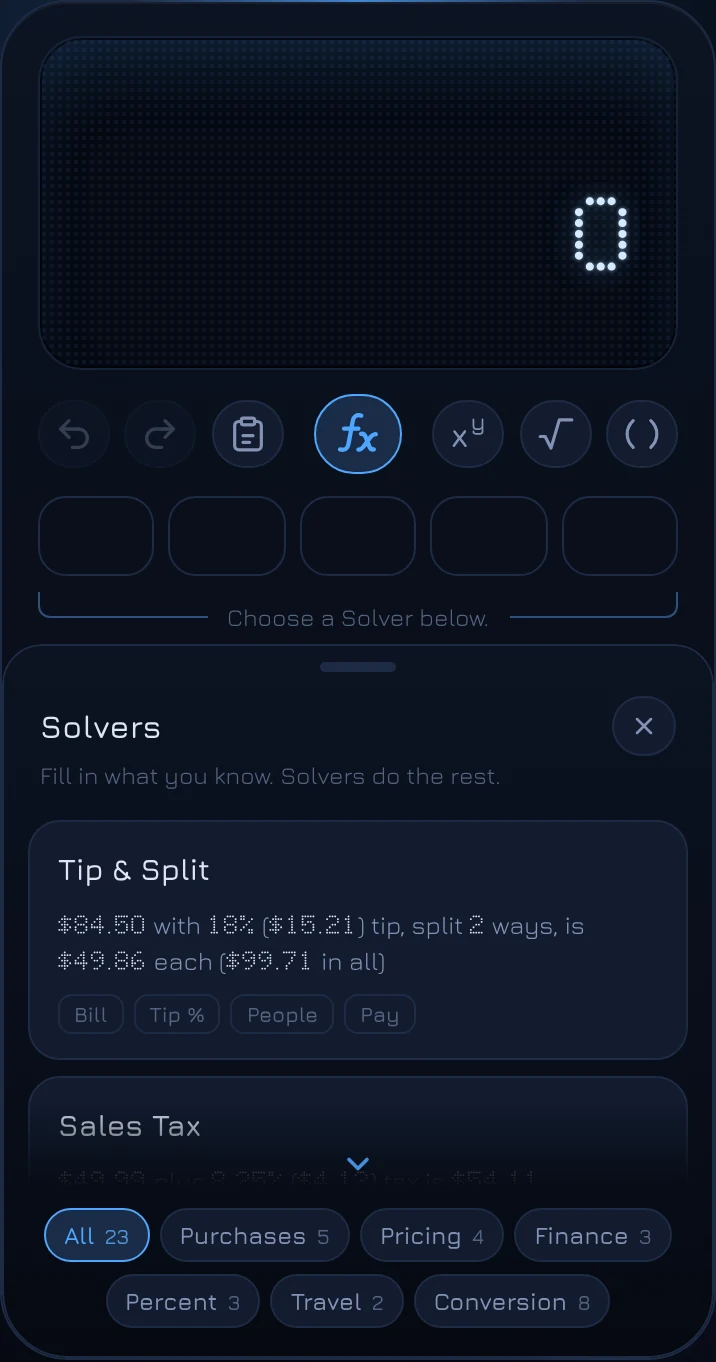
The list shows each Solver as a card with a worked example and the names of its slots. The pills along the bottom filter it: All, Recent for the ones you've used, and the categories Purchases, Pricing, Finance, Percent, Travel and Conversion. Tap a card to load that Solver; the list steps aside and the row of presets rolls over to show its slots.
How a Solver works
A loaded Solver turns the row of five presets into its slots, each labeled with what it holds: Bill, Tip %, People, Pay. You fill them the same way you'd use a preset:
- Type a value, then tap its slot. The value goes in, and the display labels it, such as Bill, so you can see where it went.
- Repeat for what else you know. Order doesn't matter.
- Tap the slot that shows SOLVE. As soon as there's enough to work something out, the slot that can be worked out turns blue and says SOLVE. Tap it.
The answer appears on the display, labeled with its slot (Pay =), and the top of the display spells out the whole thing as a sentence: $84.50 with 18% ($15.21) tip, split 2 ways, is $49.86 each ($99.71 in all). The result is logged, too.
Change any value afterward, by typing a new number and tapping its slot, and the answer recalculates straight away. (Linked Solvers, below, wait for you to choose which value should move.)
Slots you can skip
Some slots say OPTIONAL. Leave them empty and they're simply left out: in Tip & Split, an empty Tip % means no tip, and an empty People means you're paying alone. Some slots start with a sensible default instead, like 40 hours a week in Hourly & Salary, shown a little quieter than values you've entered.
Tapping, holding and clearing
- Tap a filled slot with nothing new typed and its value comes back to the display, ready to use in your own calculation.
- Hold a slot to store the number on the display there, whatever the slot is showing. That's how you enter a value into a slot that currently says SOLVE.
- Tap the × on a slot to clear it. To clear all of a Solver's values at once, hold AC and then tap it to confirm (or press Shift Esc, then Esc).
Three kinds of Solver
Formula Solvers
Most Solvers are one formula, like Sales Tax or Discount. Fill in all but one slot and that one shows SOLVE.
Linked Solvers
Cost Markup and Profit Margin connect several values at once, cost, percentage, dollar amount and price, so any two fill in the rest. The one exception is the percentage and the dollar amount together: they describe the same thing, so entering one replaces the other. They also work like a what-if sheet: change one value and the others dim and show SOLVE, and you choose which one should move. Change the margin, then tap Price to see the new price for the same cost, or tap Cost to see the cost that hits that margin at the same price. See markup vs margin.
Converters
Unit converters such as Temperature, Length and Cooking Volume have a slot for each unit. Type a value into any one, and every other slot fills in at once; there's nothing to solve. Their units follow your number format, so metric countries see centimeters and Celsius first. A Solver with more than five slots shows them in pages, with arrows beside its name; swipe the row sideways or press Shift ← → to turn the page.
Switching back to Memory presets
Solver slots and your Memory presets share the same row. The middle button shows which side you're on: ƒx for the Solver's slots, M for Memory presets. Tap it, press Tab, or swipe the row up or down to flip between them. The loaded Solver and its values stay put while you're on the Memory side.
To change Solvers, tap the Solver's name under its slots, or press Space, and pick another. To unload the Solver entirely, hold that same middle button, or tap Clear in the Solvers list and tap again to confirm.
Every Solver
coolca.lc has 23 Solvers. Each links to its own address, which opens it ready to use.
Purchases
- Tip & Split: the tip, the total and each person's share. Guide: how much to tip and splitting the bill.
- Sales Tax: add tax, remove it, or find the rate. Guide.
- Discount: the sale price, original price or percent off. Guide.
- Stacked Discounts: two discounts and a coupon, in order.
- Unit Price: the price per item, to compare sizes and deals.
Pricing
- Cost Markup and Profit Margin: selling prices from costs, and back. Guide.
- Discount and Stacked Discounts, above, are listed under Pricing too.
Finance
- Loan Payment: the monthly payment, loan amount or rate. Guide.
- Payoff Time: how long a balance takes to pay off at a given payment.
- Savings Growth: what a starting amount and monthly deposits grow to.
Percent
- Percent Change: the change between two numbers. Guide.
- Percent of: a percent of a number, or what percent one number is of another.
- Proportion: A is to B as C is to D, for scaling recipes, maps and prices.
Travel
- Speed & Time: travel time from distance and speed, or either from the other two.
- Fuel Cost: what a trip costs in fuel.
Conversion
- Temperature, Length, Weight, Cooking Volume, Speed, Time and Area.
- Hourly & Salary: hourly pay to weekly, monthly and yearly, for any hours a week.
Questions
Do Solvers remember my numbers?
Yes. Each Solver keeps its values in your browser on this device, so they're there when you come back to it. Every result is also in the Log, with a tag that brings the Solver back with those exact values.
Can I use a Solver's result in another calculation?
Yes. The result is on the display like any other number; keep calculating with it. You can also tap any filled slot to bring its value back to the display.
Why did my number solve instead of going into the slot?
In most Solvers, tapping a slot that says SOLVE solves it, even if you've just typed a number. (Optional slots and linked Solvers take a number you've just typed instead.) To put your own number into a SOLVE slot, hold it for a moment.