The Log, Undo and Repeat
Every calculation you finish on coolca.lc is saved to the Log, a list of your last 100 results that you can tap to reuse. Alongside it, undo and redo step back and forward through everything you've done, and pressing = again repeats your last operation. Together they mean you never have to retype a number you've already worked out.
Why a calculator should remember
Real calculations come in pieces. You work out a subtotal, then the tax, then you need the subtotal again for something else, and it's gone. Old adding machines solved this with a paper tape. The Log is that tape, except you can tap any line to bring its number back.
Opening the Log
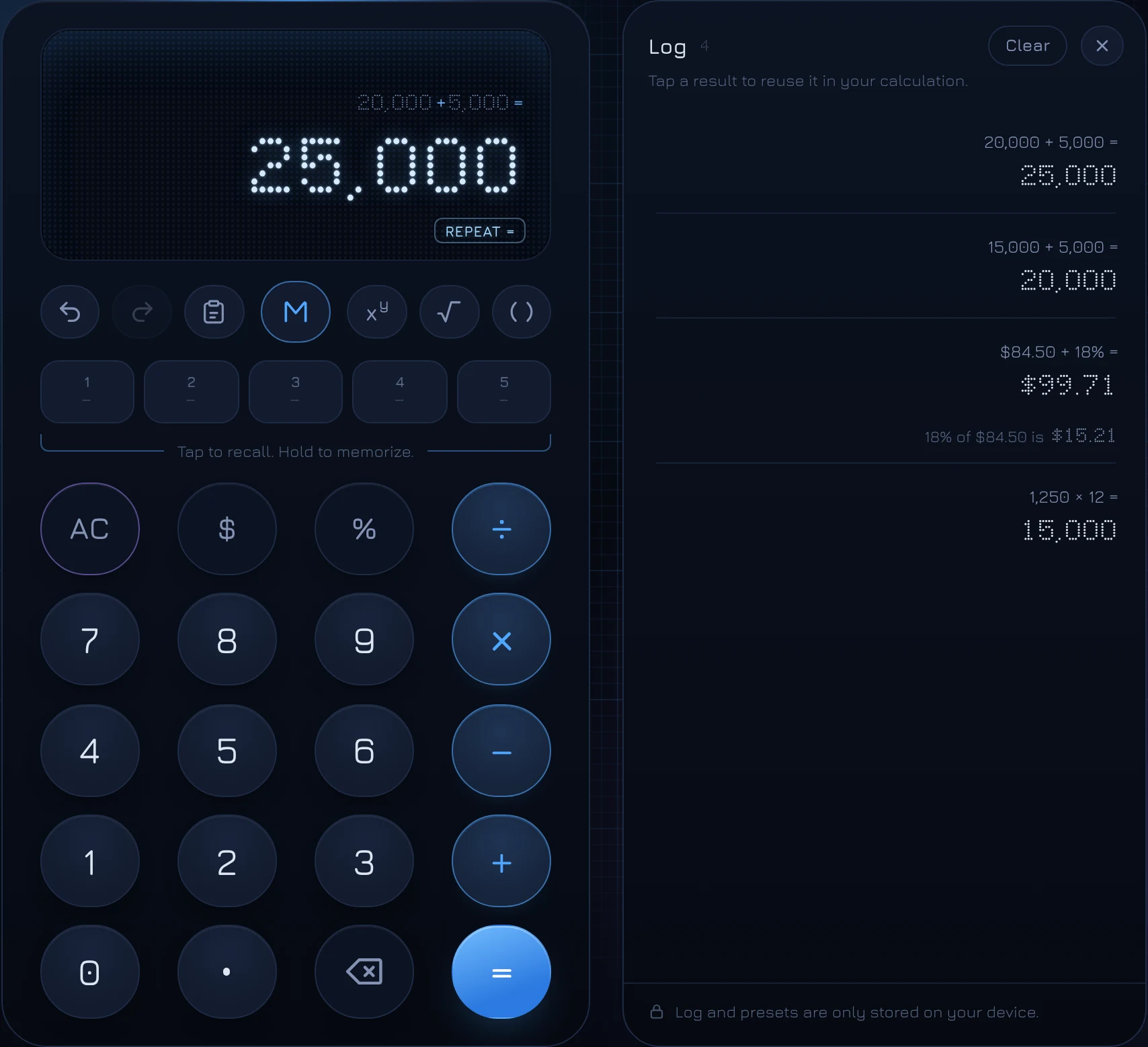
Tap Log at the top right, or press L. On a wide screen it opens as a panel beside the calculator and can stay open while you work. On a phone it slides up over the keypad; swipe it down, tap its handle, or tap Log again to close it.
Each entry shows the full calculation and its result, newest first. A small counter next to the title shows how many entries there are.
Reusing a result
Tap an entry and its result goes into your current calculation, exactly as if you'd typed it. After an operator it becomes the next number; on its own it starts a new calculation. On a phone, the Log steps aside after you tap so the keypad is back.
Calculations with a percentage get a second line, like 18% of $84.50 is $15.21. Tap that line to reuse the percentage amount, the tip itself, instead of the total.
Results from Solvers are logged as a sentence, like $84.50 with 18% ($15.21) tip, split 2 ways, is $49.86 each ($99.71 in all), with a small tag naming the Solver. Tap the tag to bring that Solver back with exactly those values filled in.
Clearing the Log
To remove one entry, hover over it (or look to its left on a touch screen) and tap its ×. It widens to ask Clear item?, and a second tap removes it. To empty the whole Log, tap Clear at the top; it asks Clear all? first. Both questions go away on their own after three seconds if you don't confirm, so a stray tap never costs you anything.
The Log keeps your latest 100 entries. Older ones drop off the end as new ones arrive.
Undo and redo
The two curved arrows at the left of the row above the presets are undo and redo. Undo steps back one change at a time: a digit, an operator, a result, a recalled preset, even saving over a Memory preset or a Solver value. Redo steps forward again.
- Undo: Ctrl Z (⌘ Z on a Mac)
- Redo: Ctrl Shift Z, or Ctrl Y
Undo survives clearing. If you tap AC by mistake, undo brings your whole calculation back. It remembers hundreds of steps, so you can walk a long way back.
Repeat with equals
Press = on a result to repeat the last operation. 8 + 8 = gives 16; press = again for 24, again for 32. It works with any operation: × 1.05 = again and again compounds 5% growth year after year, and − 250 = repeatedly counts down a balance. A REPEAT = badge on the display shows when equals is repeating; any other key ends it.
Each repeat is logged, so the Log becomes a table of the steps: handy for a savings plan, a payment schedule or anything that grows or shrinks by the same amount.
Questions
Is my Log private?
Yes. The Log and presets are only stored on your device, in your browser. They aren't sent anywhere, and they don't follow you to another device or browser.
Can I copy a result from the Log?
Tap the entry to put it on the display, then click or tap the display to copy it, formatted with its separators and currency symbol.
Why didn't a calculation appear in the Log?
Only finished calculations are logged, when you press = or a Solver works something out. A number you typed but didn't finish isn't a result yet. (One exception: if you bring back an older Solver from the Log while that Solver holds other values, those values are logged first, marked Not solved, so you can return to them.)